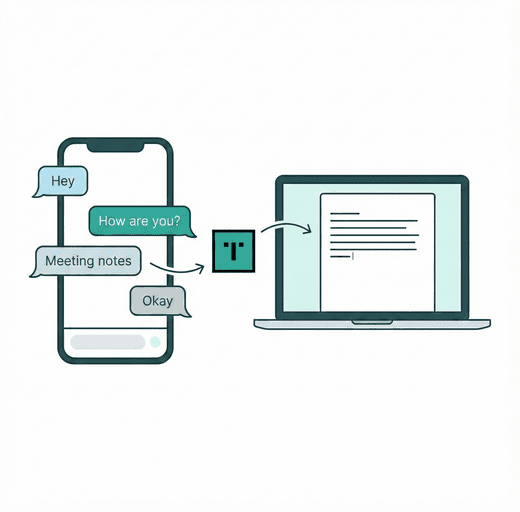
From WhatsApp Notes to Polished Text: A Simple Workflow Using TiniText
WhatsApp is great for capturing ideas, terrible for clean output. Here’s how to turn chat scraps and voice-to-text into publish-ready writing with a repeatable flow.
Why WhatsApp makes a mess
- Line breaks after every sentence.
- Transcription errors and odd casing.
- Emojis and links sprinkled in the middle of sentences.
- Mixed languages and auto-corrections.
The simple 4-step workflow
- Capture ideas on mobile: Send a note to yourself or a trusted contact. Voice notes work too.
- Copy to desktop: Paste into TiniText Text Cleaner right away.
- Normalize: Run Remove Line Breaks if paragraphs are broken; fix casing with Case Converter.
- Polish: Check word count and reading time with Word Counter, then paste into your doc or CMS.
Tip: Pin TiniText in your browser so it’s one click away when you open your laptop.
Fix common transcription issues
- Random caps: Use Case Converter to sentence-case quickly.
- Double spaces / tabs: Text Cleaner removes them instantly.
- Broken sentences: Remove Line Breaks turns chat-style breaks into smooth paragraphs.
- Missing punctuation: Add quick passes in your editor or with Grammarly/ProWritingAid.
Batch-processing multiple notes
- Copy several chat snippets.
- Clean all in Text Cleaner.
- Split into sections and run each through Word Counter to size them for emails, posts, or scripts.
Where to finish the edit
- Notion / Google Docs: Great for comments and light formatting.
- VS Code: If you need markdown control.
- CMS: Paste the cleaned text; add links and images there.
Keep the workflow consistent
- Use a shortcut to open TiniText.
- Always clean before formatting.
- Run a Text Diff between the raw chat and the cleaned version to ensure you didn’t drop key details.
Tools that pair nicely
- Grammarly or LanguageTool for quick grammar passes.
- Obsidian or Notion to archive polished notes.
- Email or CMS for final publishing.